Scan QR codes on receipts — keep spending in one place.
Point your camera at the QR code on a receipt — BillStat saves it to your history and loads the receipt details. No bank card data. No analytics.

How it works
BillStat is built around QR codes on receipts in Montenegro.
Screenshots
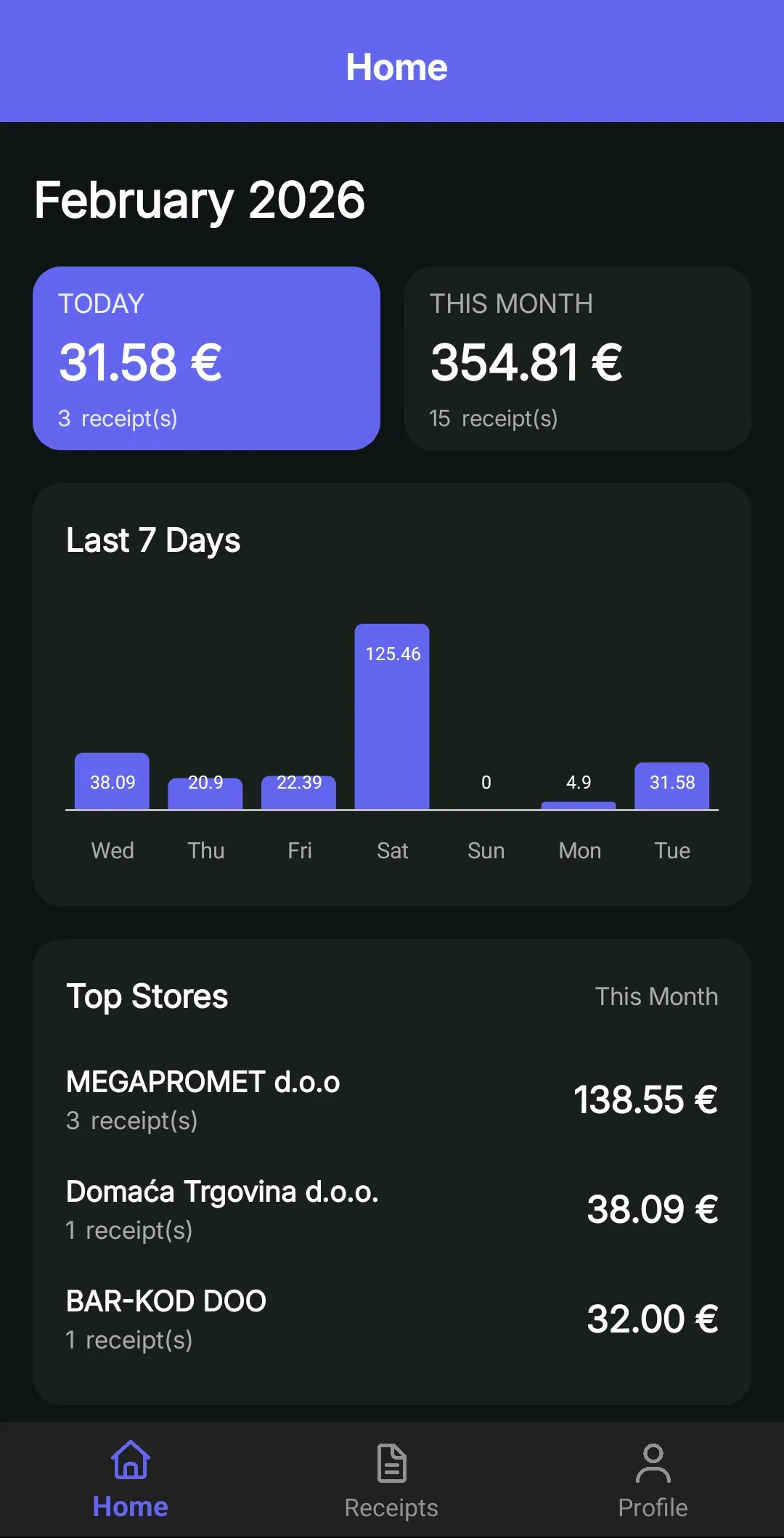
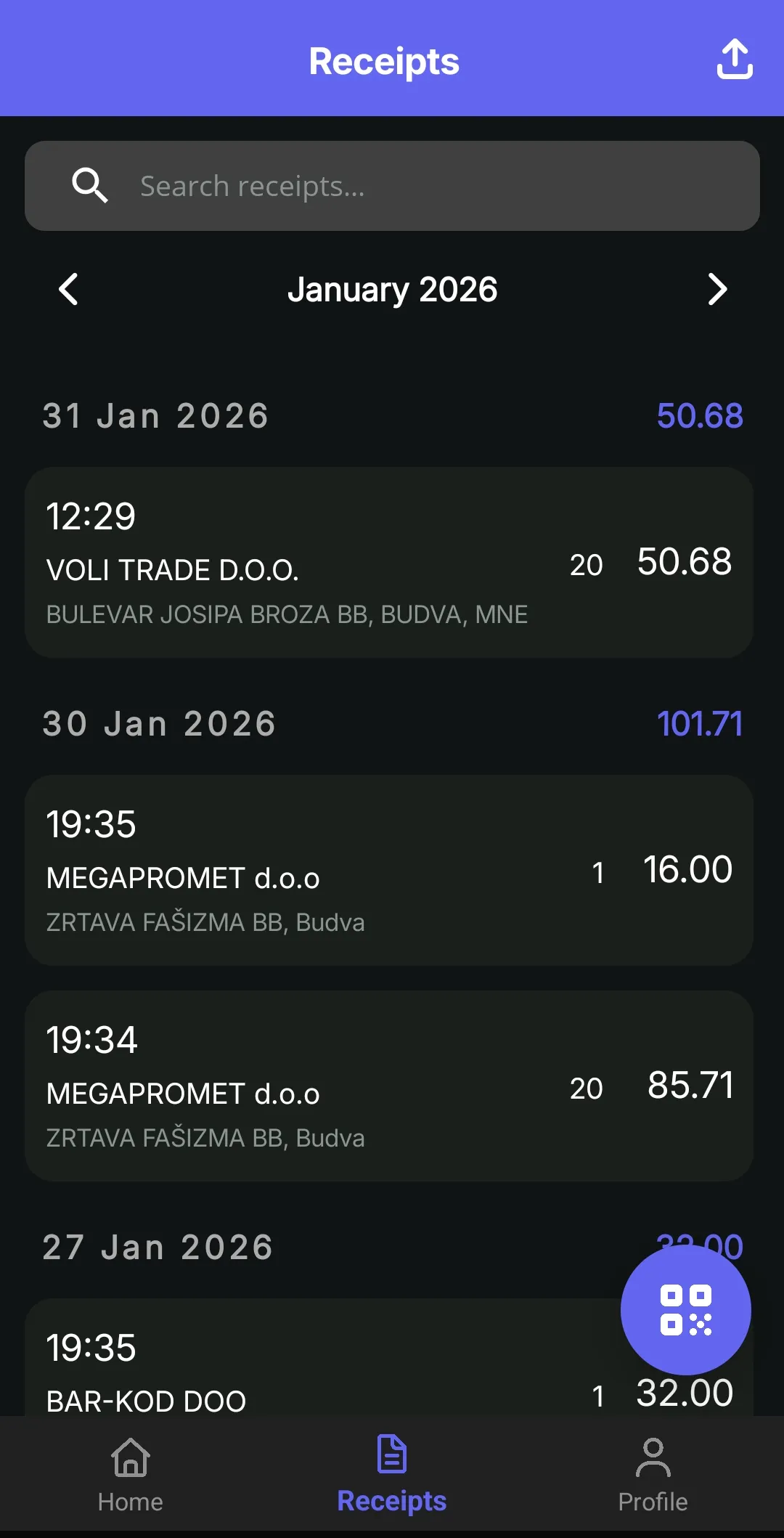
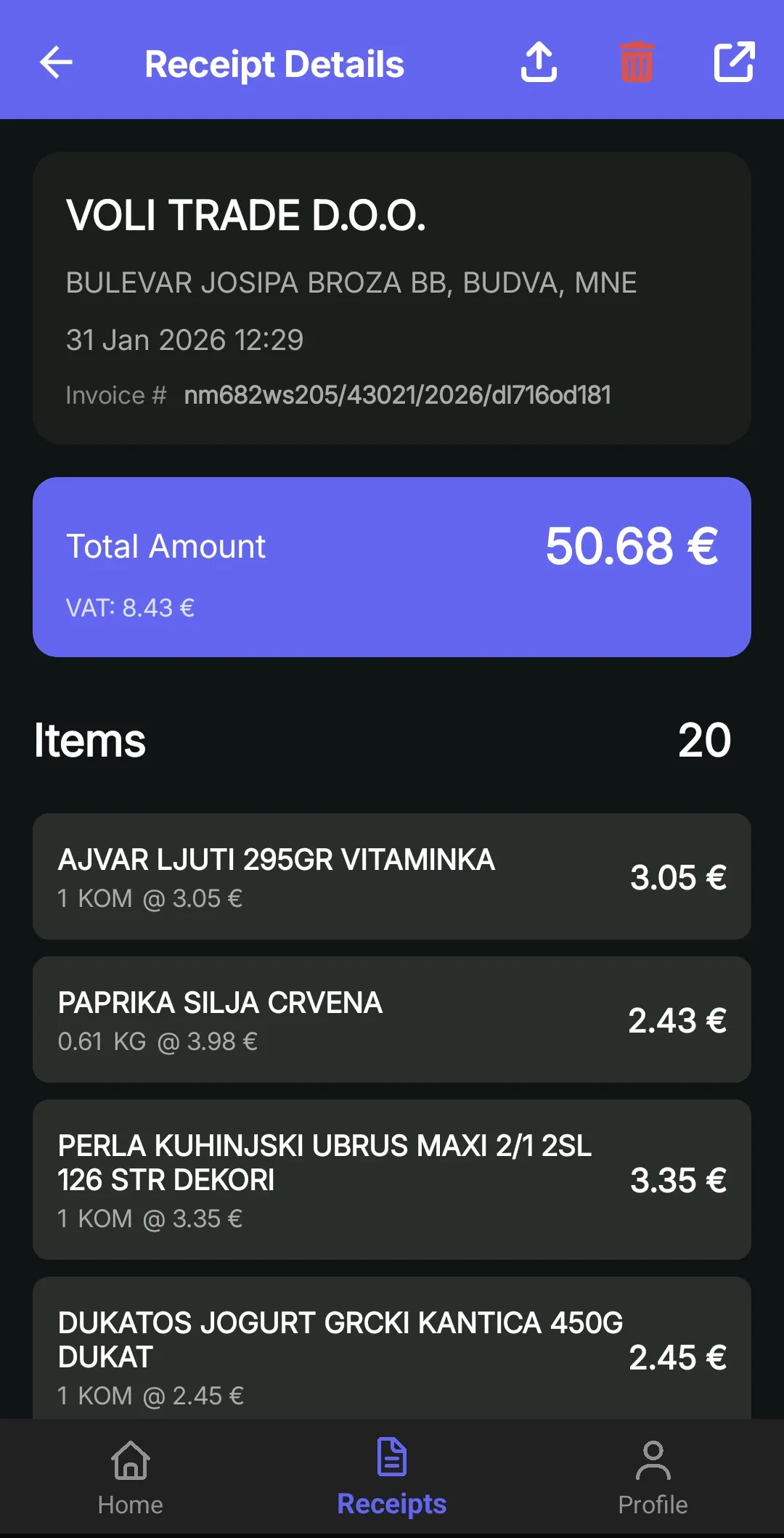
Screenshots in the selected language and theme.


Get the app
Available on Google Play. App Store coming soon.

 Coming soon
FAQ
Does BillStat scan bank card receipts (POS slips) or payment documents?
No. BillStat is intended for receipts with QR codes. It is not designed to scan or process POS slips or payment documents, and it does not intentionally collect payment card numbers or similar data.
What data do you store?
BillStat stores your Google Sign‑In account info (such as email, name, avatar if provided) and receipt data shown after checking a receipt by QR (merchant, totals, VAT, items when available). See our Privacy Policy for details.
How do I delete my account?
Open the Profile tab in the app and tap Delete Account. Your account and all associated data will be removed.
What does “open the receipt page” mean?
The QR code includes a link to an official receipt verification page. BillStat can open that page from the receipt details.